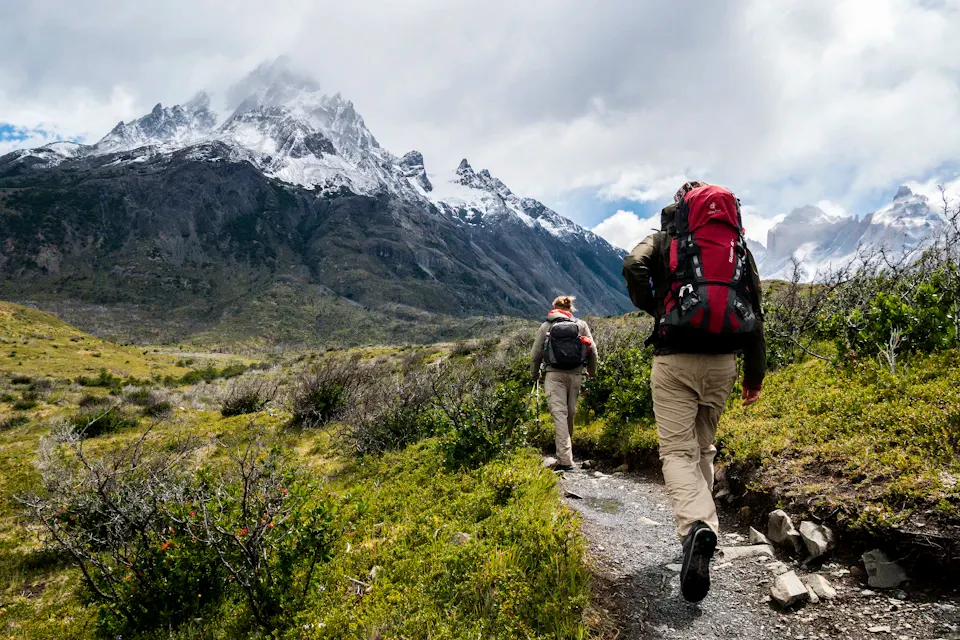
Travel photos
Mark a passerby in the background, then inspect the pavement, architecture and scenery.
 ClixMagic
Paint over the people you want to remove, then submit for cloud processing. Give travel photos and landscapes the composition you intended.
Drop an image or choose one from your device
JPEG / PNG · Up to 5 MiB · 16 megapixelsSelection processing is in testing: results may also change unpainted areas. Keep your original and review the whole image before downloading.
Use an image you own or may edit.
Paint the target and review your selection before submitting.
Inspect the result and download within 24 hours of submission.
Choose an image first.
One credit is reserved on submission, used on success and released on confirmed failure or cancellation. Images are uploaded to the cloud. Download within 24 hours of submission.
Your image and selection stay in this page only. Reselect them after leaving or reloading.
Checking service availability…
Mark the person to remove while keeping your intended subject outside the selection. Detailed backgrounds and overlapping figures need a closer review.
Remove a personMark a passerby in the background, then inspect the pavement, architecture and scenery.
Select distant figures so the mountains, coastline or buildings can take the focus.
Edit images you have permission to change. Keep wanted clothing, outlines and people outside the selection.
Use JPEG or PNG, up to 5 MiB and 16 megapixels. Your image and mask remain in this page until submission.
Paint over the target or add a numeric selection. Sign in and confirm your rights and one credit before submitting.
Follow the task status, then check the background and edges. Download within 24 hours of submission.
Choose a question to read the answer.
Paint over the target's clothing, hair and belongings that need removal, keeping wanted people outside the selection. Check boundaries where people overlap railings or branches. Large covered areas may not restore naturally.
For a chair, sign or other item, choose object removal instead.
Include them if you want them processed. Afterward, inspect how the edited area joins the ground or wall. A reconstructed background is not a factual record of the scene; keep the original for important photos.
If the person is at an edge you can discard, you can also crop the photo. Save your current result before switching tools.
One credit is reserved on submission, consumed on success and released on confirmed failure or cancellation. Downloading the same available result again costs no extra credit. All five removal tools share an allowance.
Use JPEG or PNG, up to 5 MiB and 16 megapixels, with a filename of no more than 64 characters. Keep the original. Videos and PDFs are not supported.
Download within 24 hours of submission. Refreshing or leaving clears your local image and mask. Existing cloud tasks remain accessible from your account's task list.
Practical reading on selections, image quality and the details to check before publishing.
Inspect flat backgrounds, repeating patterns, lettering and subject edges, then decide whether to repair, crop or return to the source.
Read the articleImage tipsUse a travel-photo scenario to plan a selection, identify overlap with your subject and inspect the background after removal.
Read the articleImage tipsUse cables and cups on a tabletop to plan selections and check straight edges, contact shadows and accurate product information.
Read the articleChoose an image you have permission to edit.