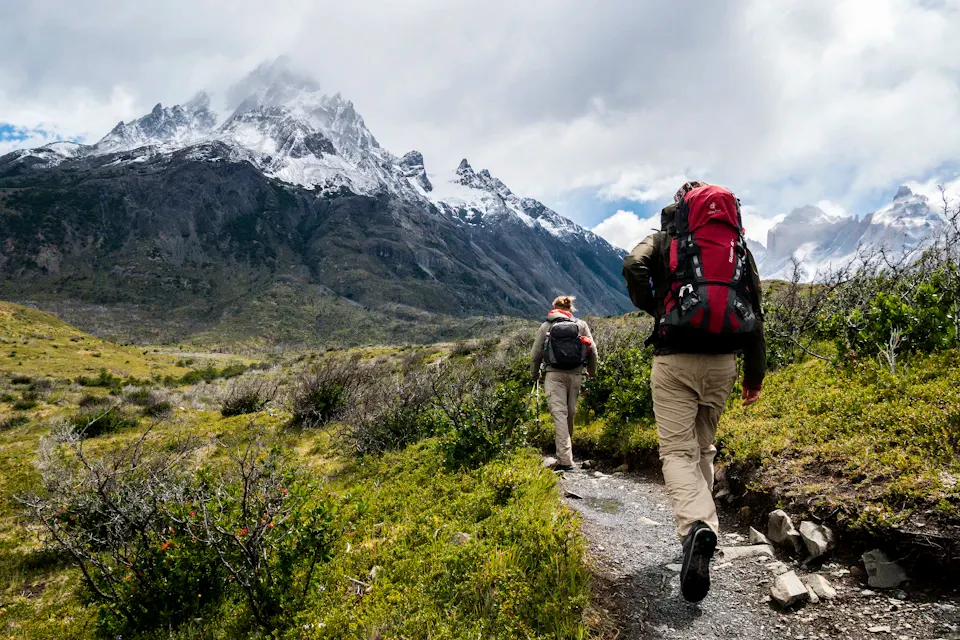
Give your trip a cover
Find the composition, adjust the color, then add a title.
- Crop
- Adjust
- Annotate
 ClixMagic
Resize a JPEG, PNG or WebP by exact pixels or percentage. Keep the aspect ratio, fit the full image inside a target size, fill the frame or stretch when exact dimensions matter more than proportions. Processing stays in your browser.
Crop, adjust, annotate, then export. Keep every edit in one workspace.
Start with: ResizeSwitch tools anytime
Static JPEG, PNG and WebP. Up to 25 MiB / 24 megapixels each; 16 images / 80 MiB / 96 megapixels total. Download before leaving: the workspace does not autosave.
Images stay in this browser. Supports JPEG, PNG and WebP. Leaving clears your workspace, so download your results before you go.
Set pixels, percentage and fitting behavior for the destination, then inspect the result at its intended size.
Back to resizeOpen a static JPEG, PNG or WebP. Check the current width and height before choosing new dimensions. Each image can be up to 25 MiB, 24 megapixels and 12,000 pixels per edge.
Enter a target width and height or resize by percentage. Keep the aspect ratio for normal scaling. Use Fit to show the whole image inside the target, Fill to cover the target and crop overflow, or Stretch only when changing proportions is intentional.
Check the result at its intended display size. Choose PNG or WebP for transparency, or JPEG for photos. Download before refreshing or leaving the page.
Understand the differences between framing, dimensions, formats and export behavior.
How to resize an image: pixels, aspect ratio and qualityReducing dimensions usually preserves the appearance better than enlarging. Keep the aspect ratio, avoid repeated resizing and inspect text, faces and thin edges at 100% before downloading. Enlarging creates more pixels but cannot restore detail that is not present in the source.
Resizing scales the full image to new dimensions. Cropping removes part of the image to change its frame or composition. If the subject needs a different frame, crop first; if the composition is already right, resize the full image.
Use the image cropper when you need to remove edges or change the composition.
Fit keeps the whole image visible inside the target and may leave unused space. Fill covers the target and can crop overflow. Stretch forces the exact width and height, which can distort the image when the target ratio differs from the source.
Yes, but enlargement does not recreate missing detail. The result can look soft or pixelated, especially around text and sharp edges. Use the smallest output that meets the destination's requirements and compare it with the original.
Compress the resized image when the destination also has a file-size limit.
Combine tools for a cover, shop images or a visual story. Here are three ways to start.
Find the composition, adjust the color, then add a title.
 1:1
Match sizes and borders, then add your own brand mark.
Arrange a strip or grid and use annotations to connect the details.
Your images, editing history and exports stay together in this workspace.
Try it in the workspaceChoose files, drag them in or paste an image. Try the sample if you want to explore first.
Set the composition and size, then adjust colors, annotate or watermark. Switch tools on the same image and undo applied changes.
Compare with the original, then choose PNG, JPEG or WebP. Download multiple results as a ZIP and save them before leaving.
Questions about your images, privacy and exports.
Need a hand? Contact supportThe basic image editor is free and needs no account. Cropping, adjustments, annotations and batch exports run in your browser without using cloud image credits.
This workspace processes your images in the current browser without uploading them. Download your results before leaving or refreshing; the workspace does not autosave.
Use static JPEG, PNG or WebP images. Each image can be up to 25 MiB, 24 megapixels and 12,000 pixels per edge. A session supports up to 16 images, 80 MiB of source files and 96 megapixels total. Animated images, HEIC and PDF are not supported.
Yes. Switch tools in the editor to keep working on your current image. Undo, redo and restore are available, with up to 12 history steps, fewer under memory pressure. Saved text and shapes remain editable until a pixel edit flattens them into the image.
Choose PNG or WebP for transparency, or JPEG with a quality setting for photos. JPEG fills transparent areas with the matte color. PNG does not use a quality setting, and the editor reports when a file-size target cannot be met.
Use a solid cover in the Redact tool and inspect the exported result. Blur and pixelation may leave details recognizable, so use solid covers for passwords, account numbers and other sensitive text.
Try the sample or bring an image into the workspace.